Request FS approval
A P2i Director or P2i Senior Director is required to approve the FS contract before the draft can be sent to the (Funded Organisation) Supplier.
Tip When the project is not known, try navigating to the procurement project via the contract located in the contract register. Refer to Search for contracts from the Contracts Register
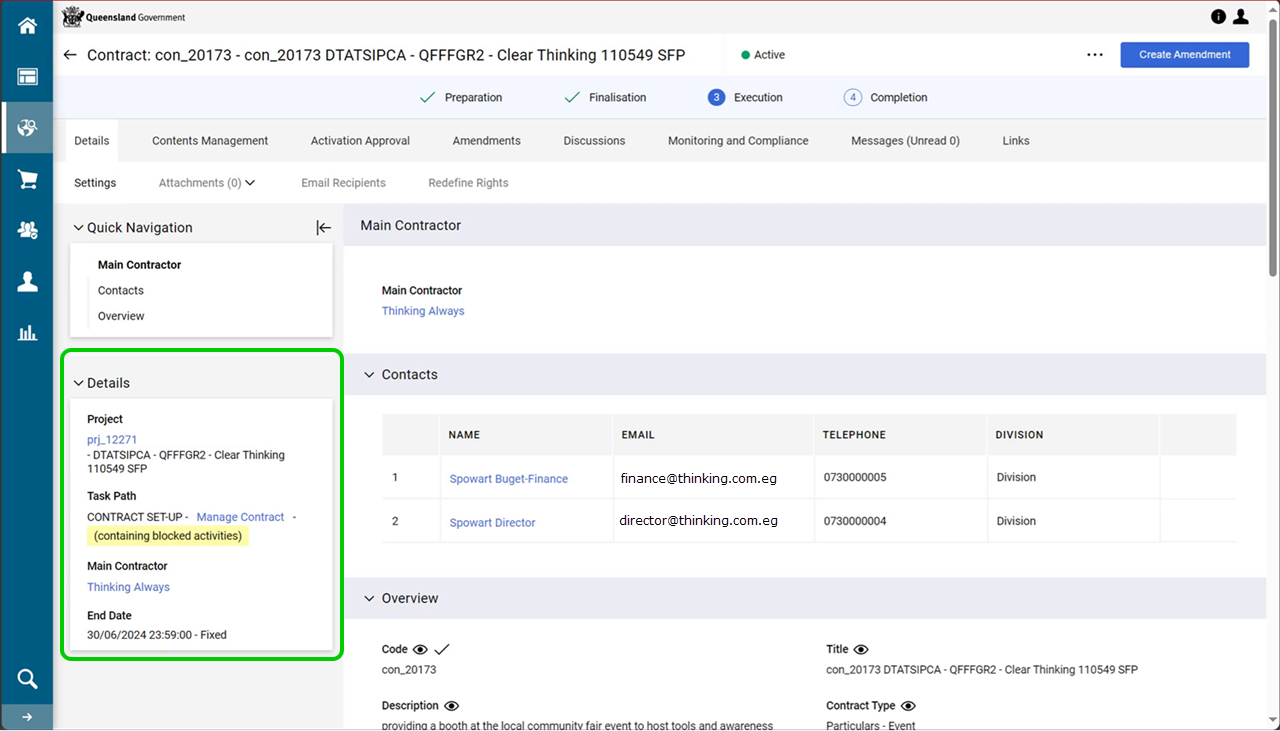
Use the contract's Sidebar menu for: links to the project, the current workflow task, and the supplier (i.e. the Funded Organisation's profile.
Example From the contract's sidebar menu:
-
Click Details tab > Settings > Details.
-
Click the prj_ hyperlink in the Project field.
-
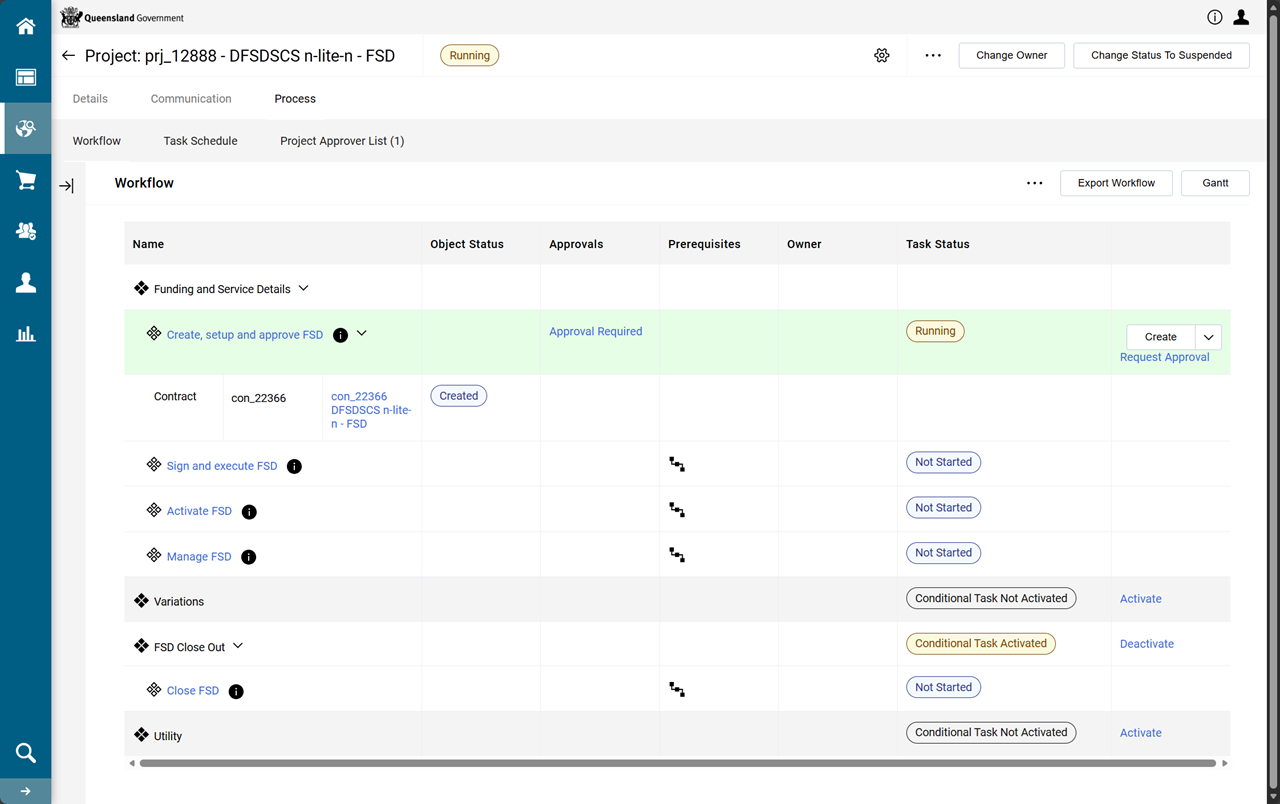
From the FS project, click Process tab > Workflow.
-
Click Create, set-up and approve FSD hyperlink.
-
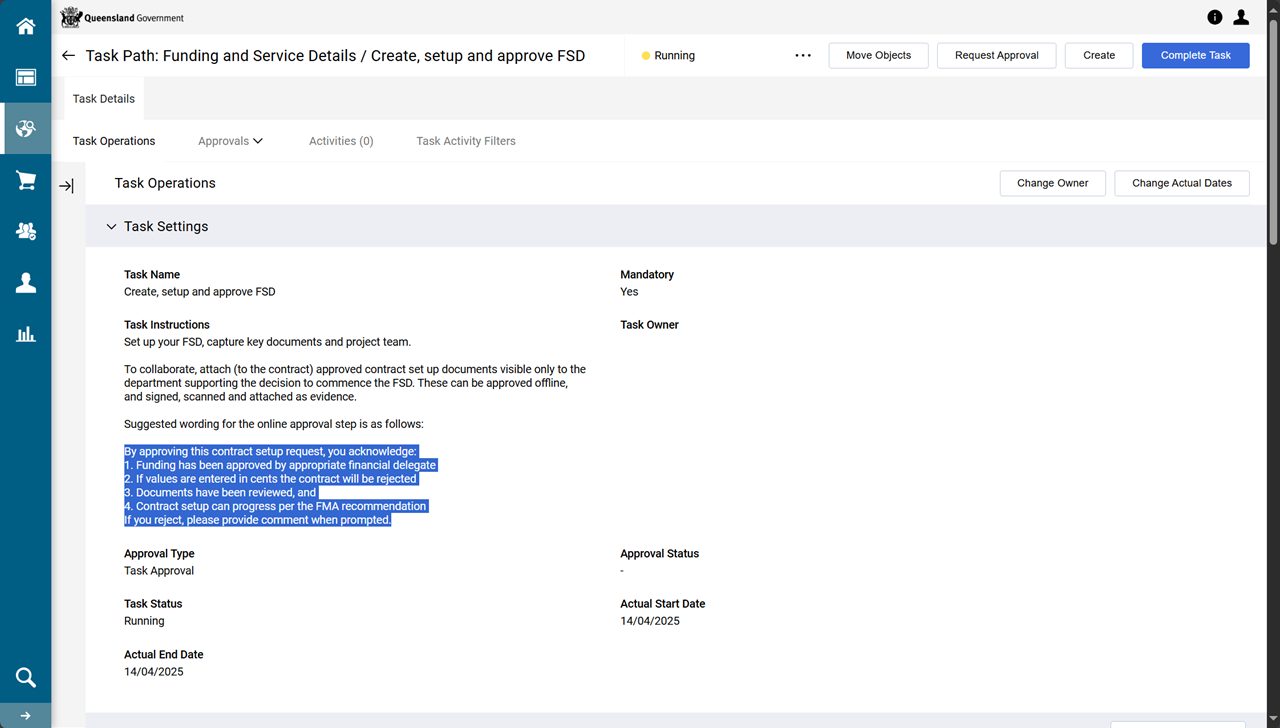
Copy the wording in the Task Instructions paragraph in preparation to add to the approval's Description field.
-
Click Request Approval.
-
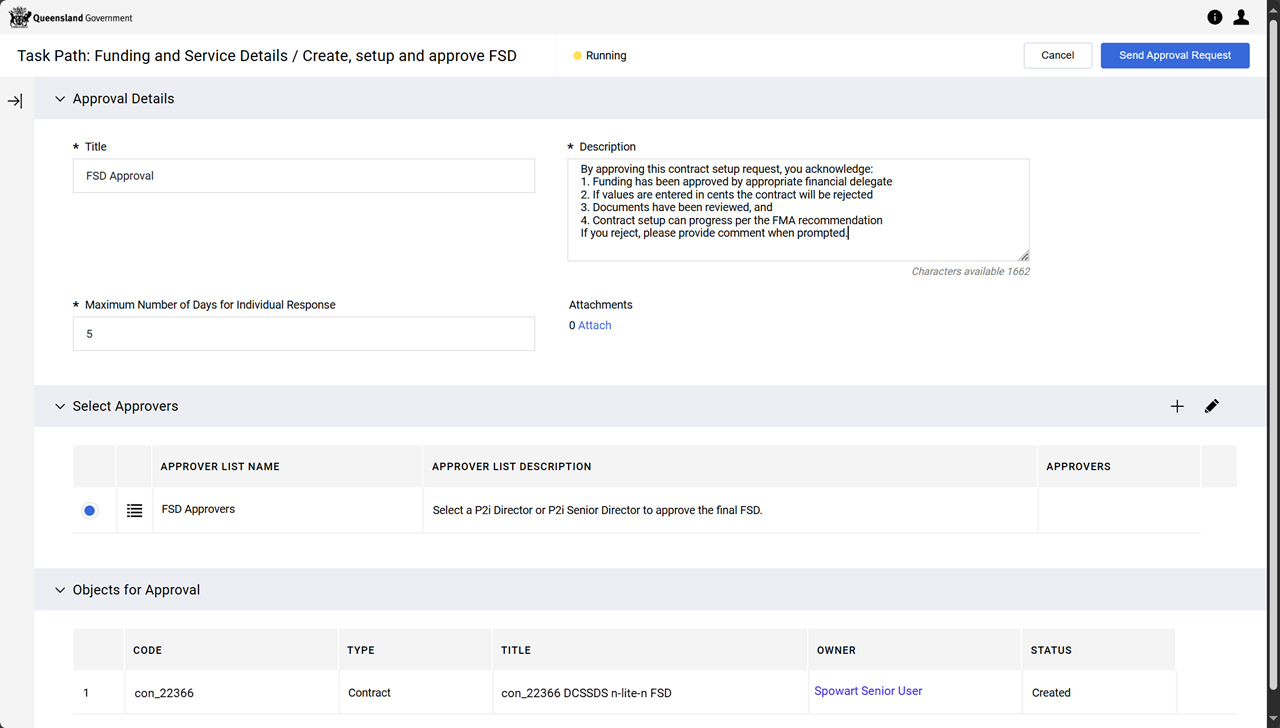
Paste the copied text into the Description field.
Tip If required:
-
Title is useful for the approver to help identify this particular approval (e.g. add the project/contract number to the Title)
-
change the Maximum Number of Days for Individual Response to provide more or less time for the approver
-
attach the draft of the contract to approval documents OR attach it in the approval request, by clicking the Attach hyperlink.
-
-
Ensure the approvers radio button is selected in the Select Approvers section against the approver list needed.
Note If no one or an incorrect person is listed in the Approvers column , then please:
-
update the Project Approver List ( from the project > Process tab > Project Approver List page)
OR
-
alternatively, follow the instructions to Add an approver list manually.
 Add an approver list manually
Example
-
In the Select Approvers section, click
 .
.
A new area is displayed in the section.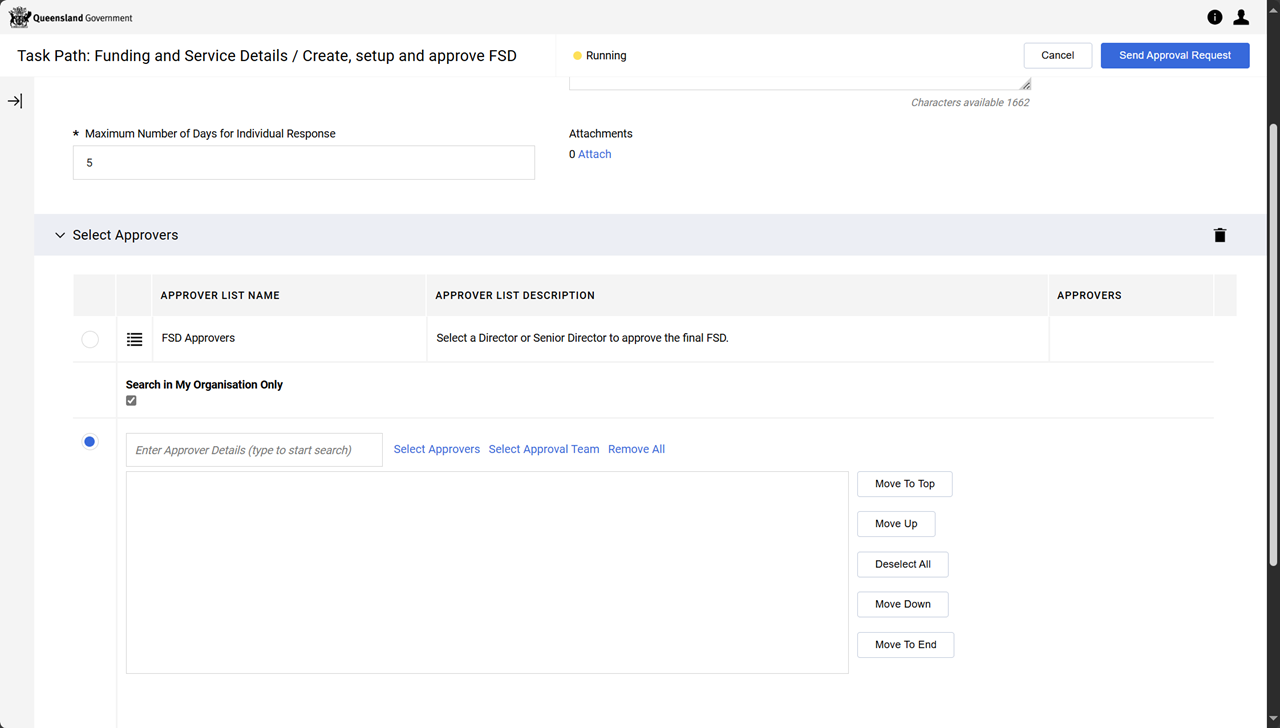
-
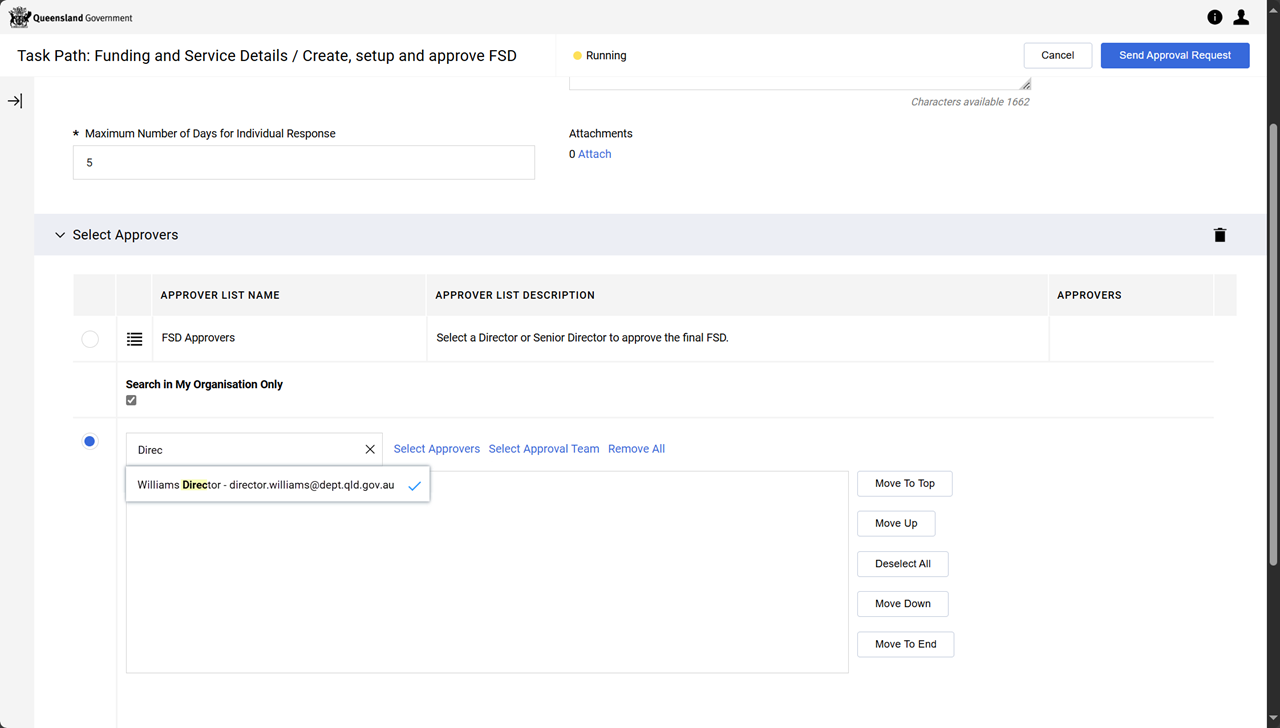
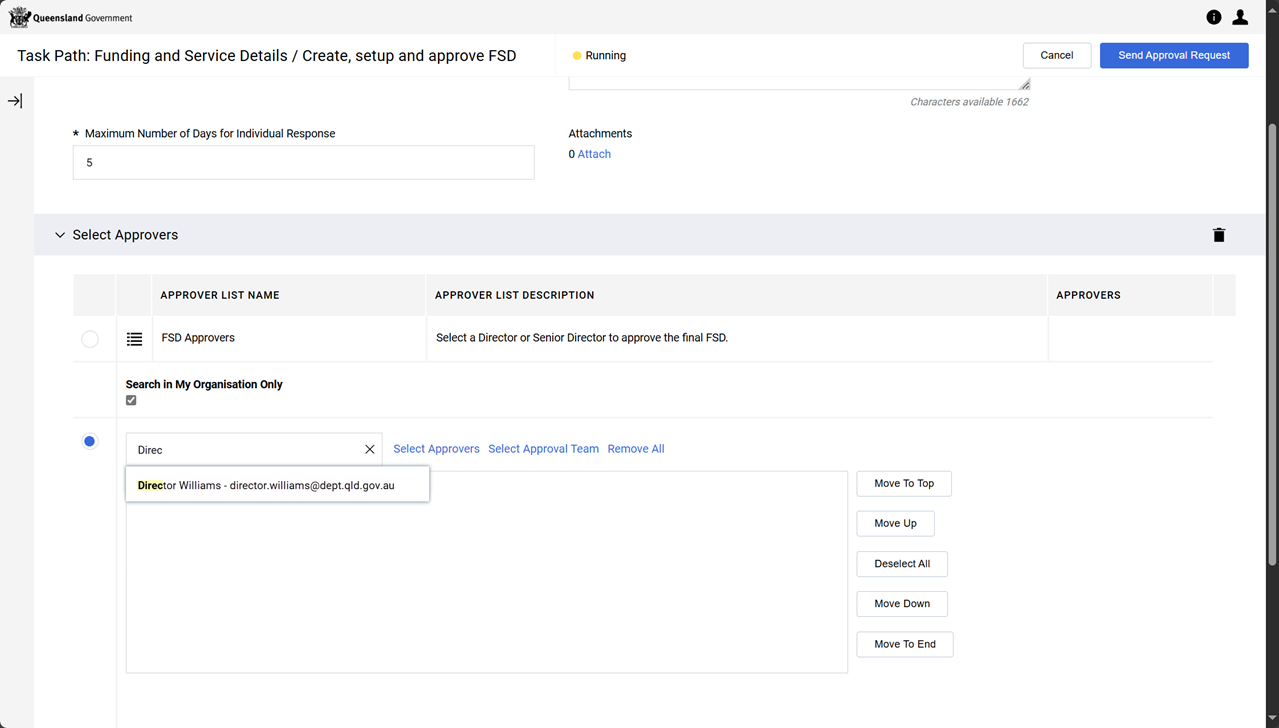
In the Enter Approver Details (type to start search) textbox, start entering the approver name (perhaps 4 characters) and then wait.
-
Click the approver. It is selected when it has a tick and is added to the list box.
Tip Click the name again to unselect or click the X in the list box to remove from the list.
-
-
Click Send Approval Request.
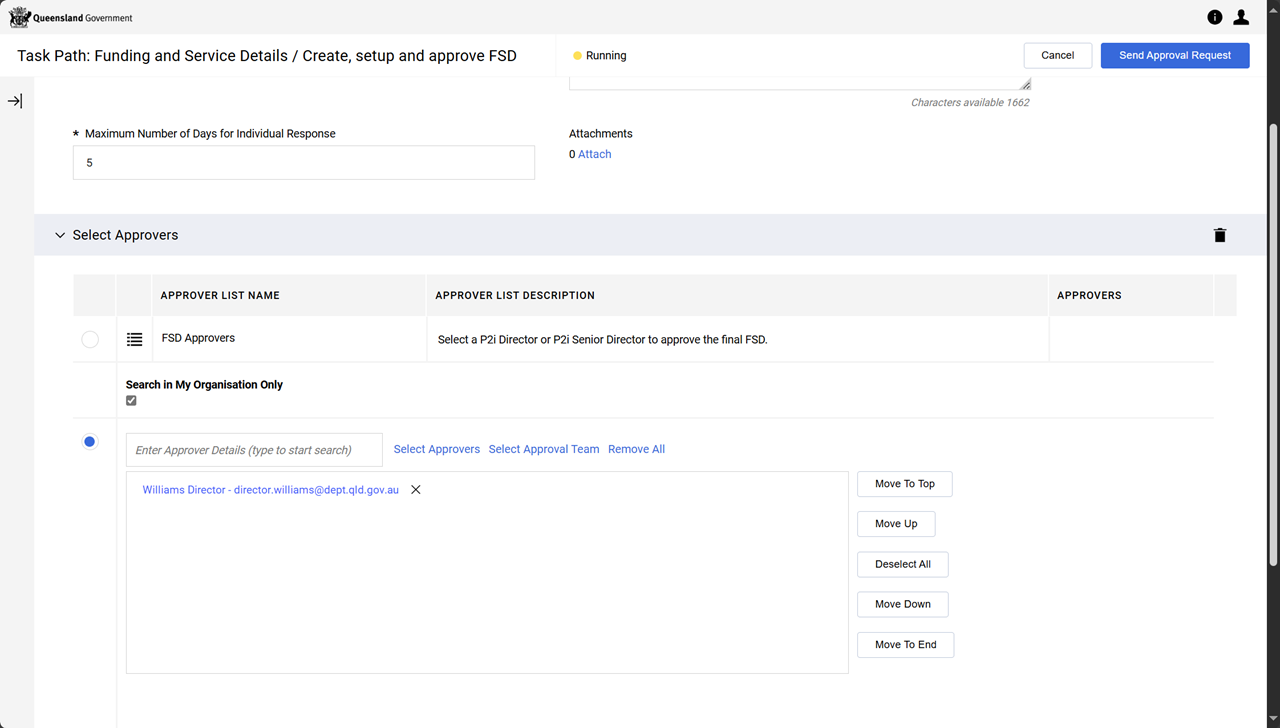
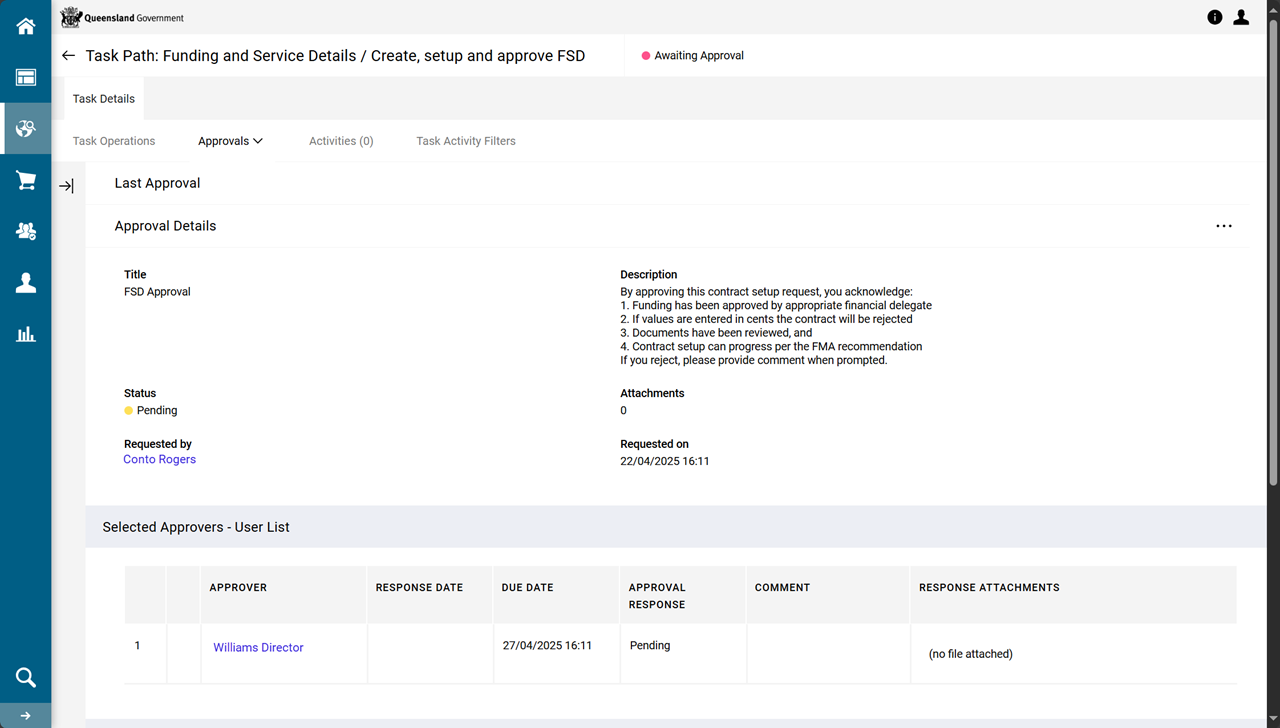
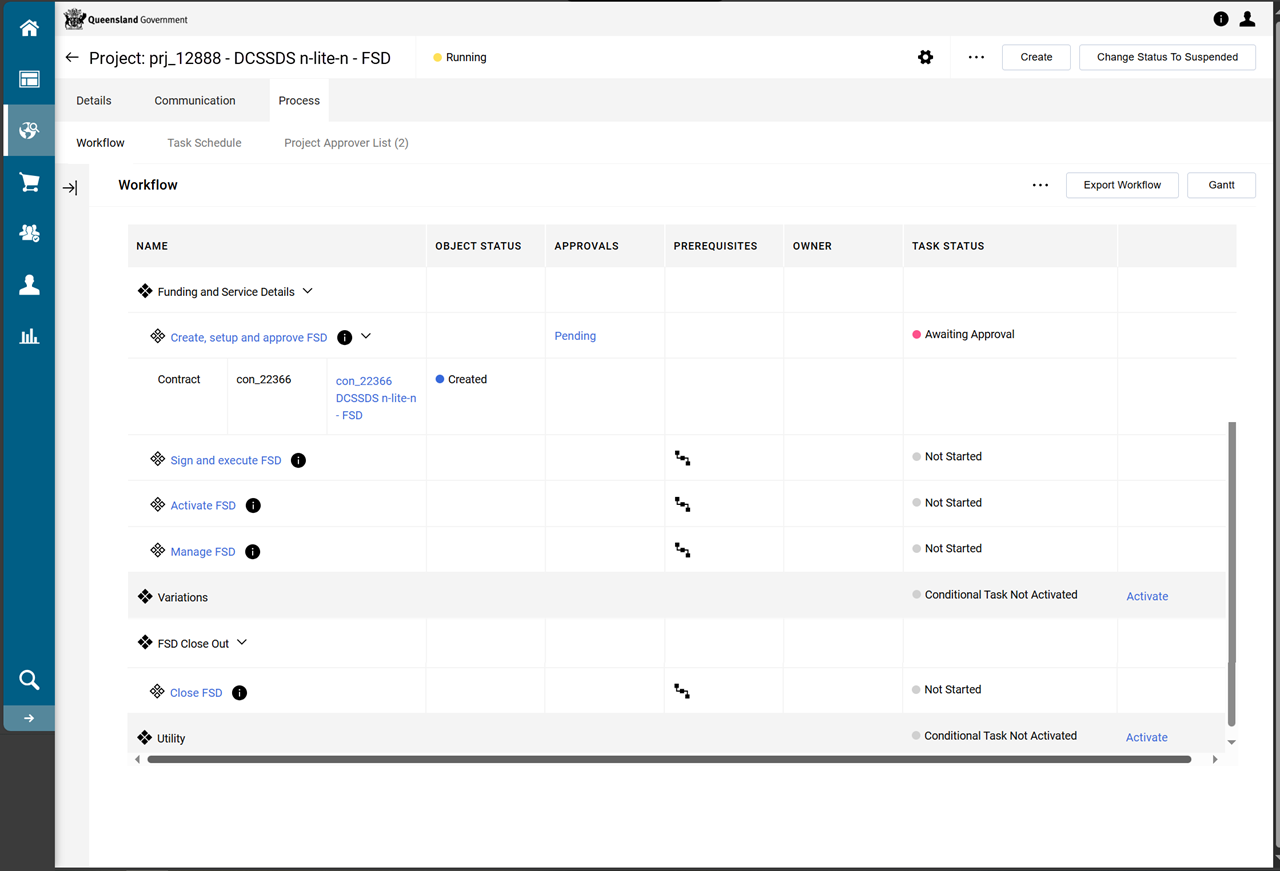
The workflow task status updates to Awaiting Approval.
An email notification which includes the task description and a link to the approval task, is sent to appropriate P2i users. (refer to project > Communication tab > Alerts > Sent Alerts)